> For the complete documentation index, see [llms.txt](https://faqs.fxlivecapital.com/iHQNLyDW28A3nNbpumaP/llms.txt). Markdown versions of documentation pages are available by appending `.md` to page URLs; this page is available as [Markdown](https://faqs.fxlivecapital.com/iHQNLyDW28A3nNbpumaP/services-group/broker-cfds-trading.md).
# Broker (CFDs Trading)
### Broker overview
The **Broker** service lets you create trading accounts (live or demo), connect to **MetaTrader 5 (MT5)**, and manage your trading accounts directly from your FXLiveCapital client area.
### Start here
1. Review available account options: [Trading account types](/iHQNLyDW28A3nNbpumaP/services-group/broker-cfds-trading/trading-account-types.md)
2. Fund your account: [How to make a deposit?](/iHQNLyDW28A3nNbpumaP/financial-transaction/funds-transactions/how-to-make-a-deposit.md)
3. Create your trading account (live or demo) using the guides below.
***
### Create a live trading account
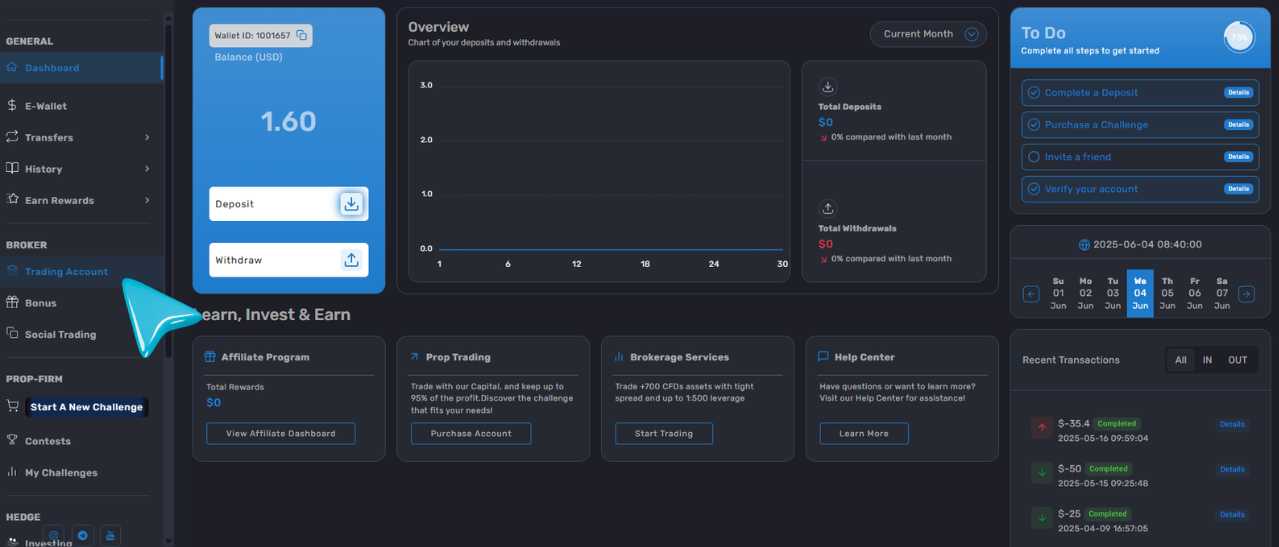
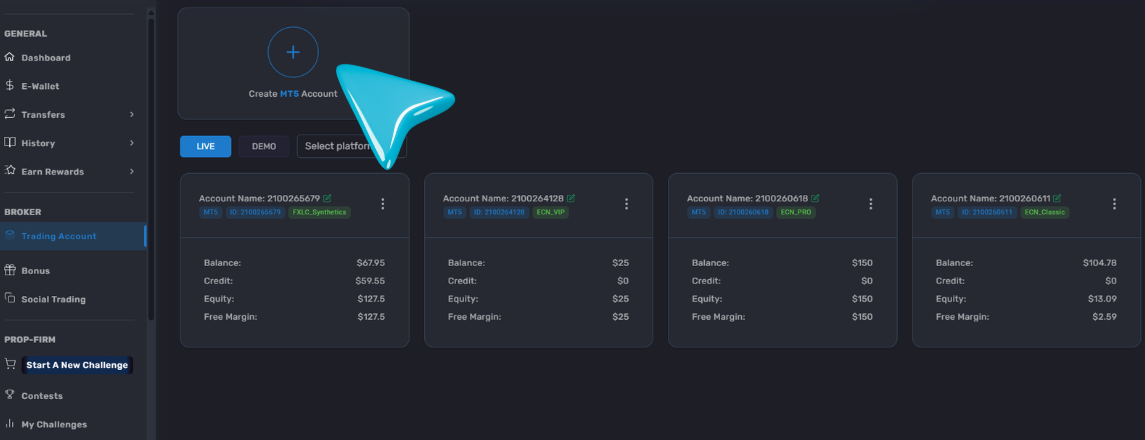
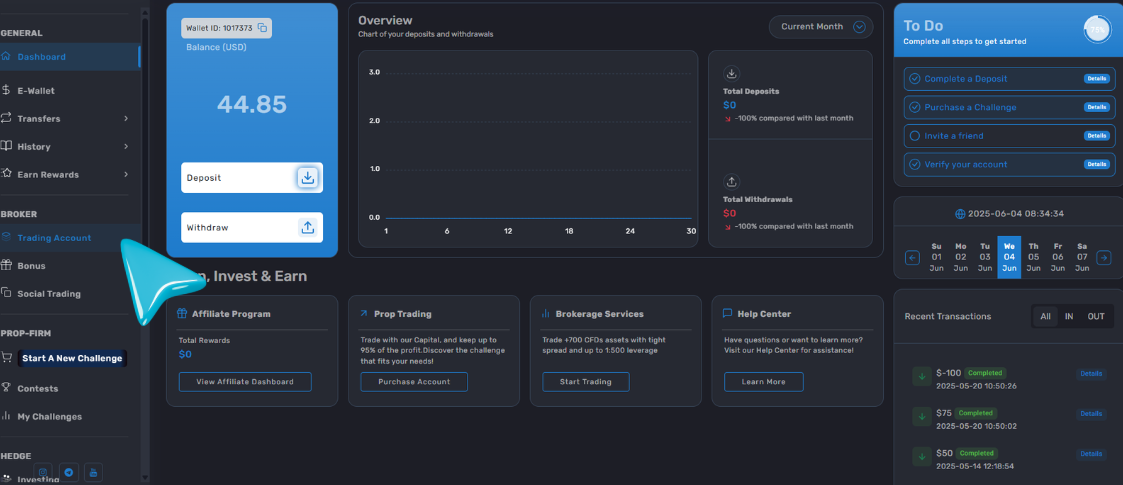
1. In your client area, open **Trading Account**.
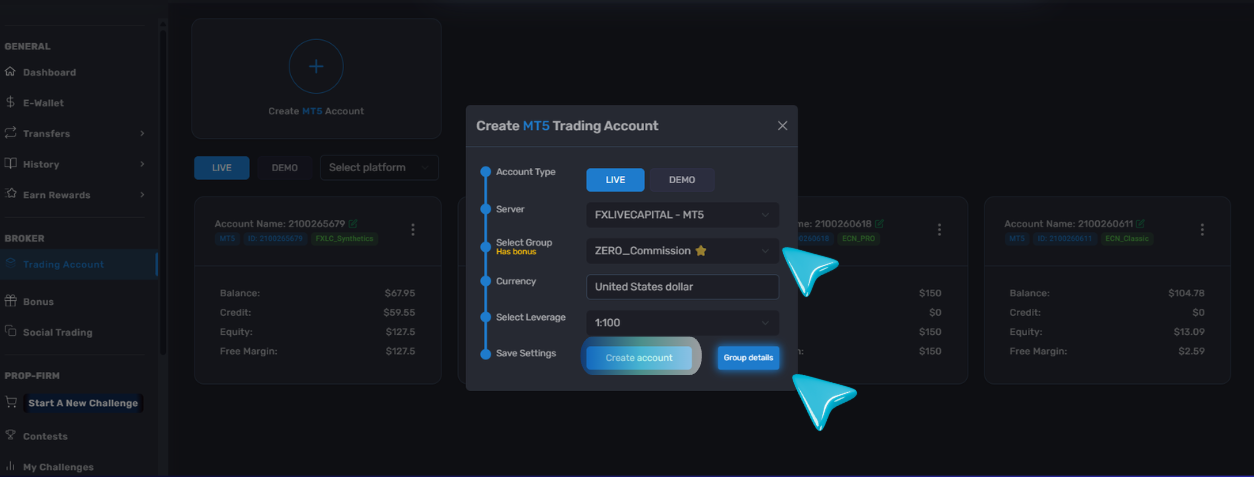
2. Click **Create Account** and select the account configuration you prefer.
3. Review the summary carefully (account type, leverage, and details), then click **Create Account**.
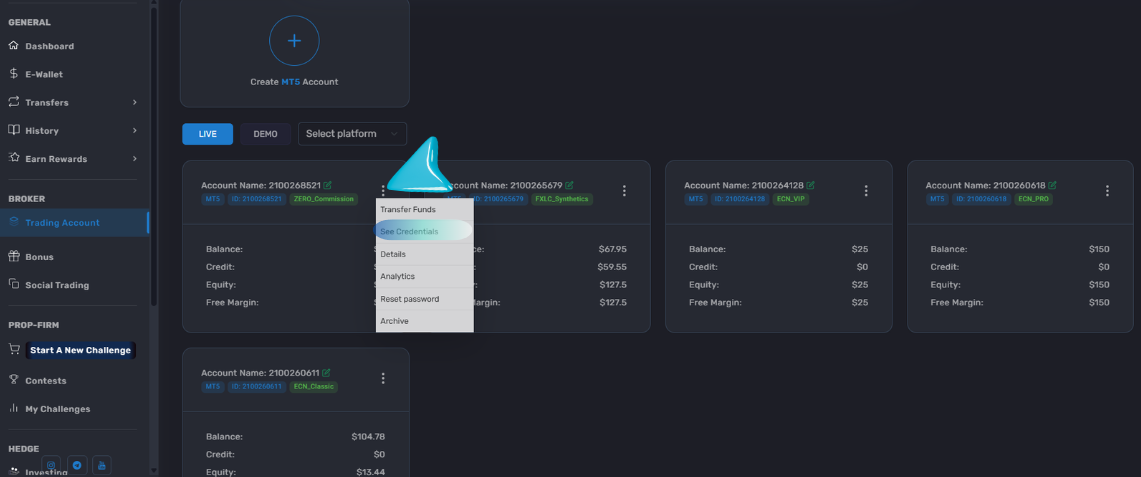
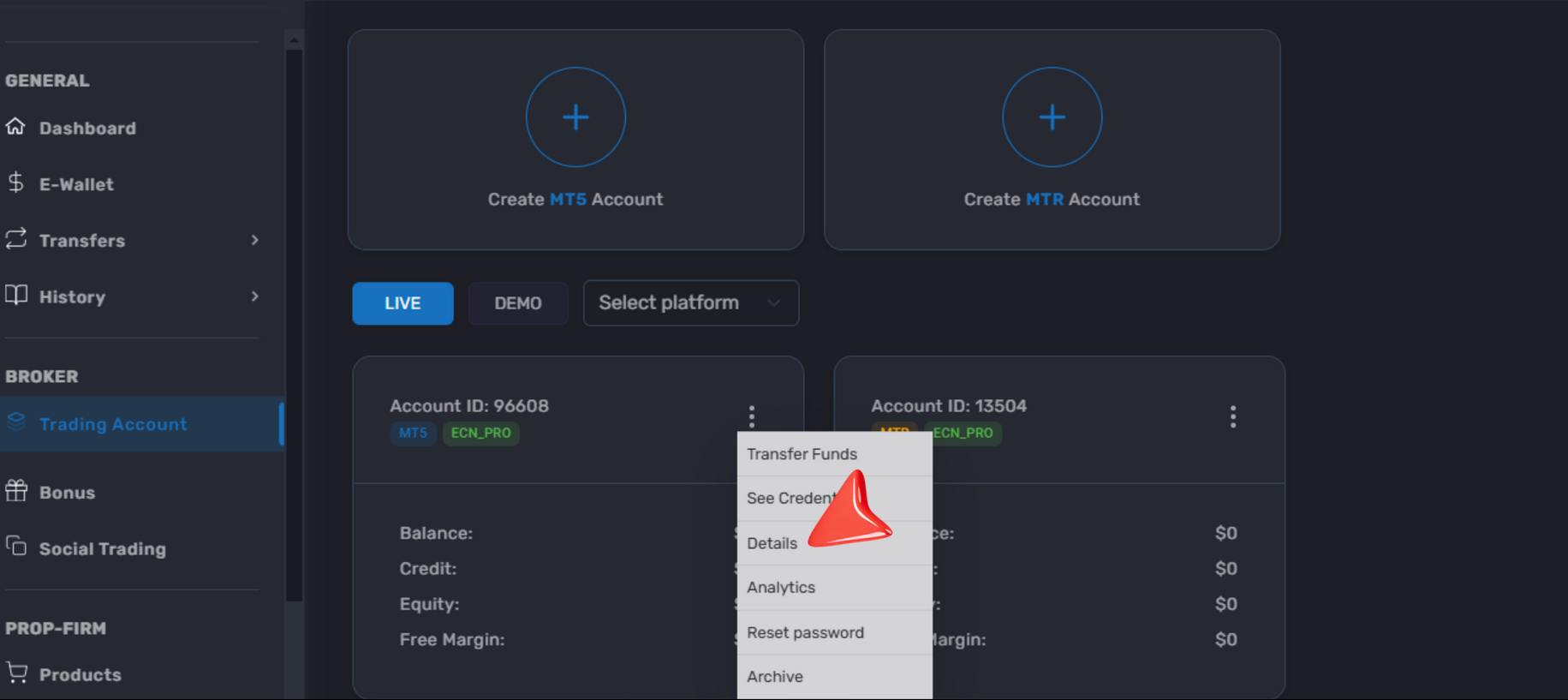
4. You will receive your MT5 credentials by email. You can also open the three-dot menu (⋮) next to the account and select **See Credentials**.
5. (Optional) Rename the account using the pencil icon.
***
### Create a demo trading account
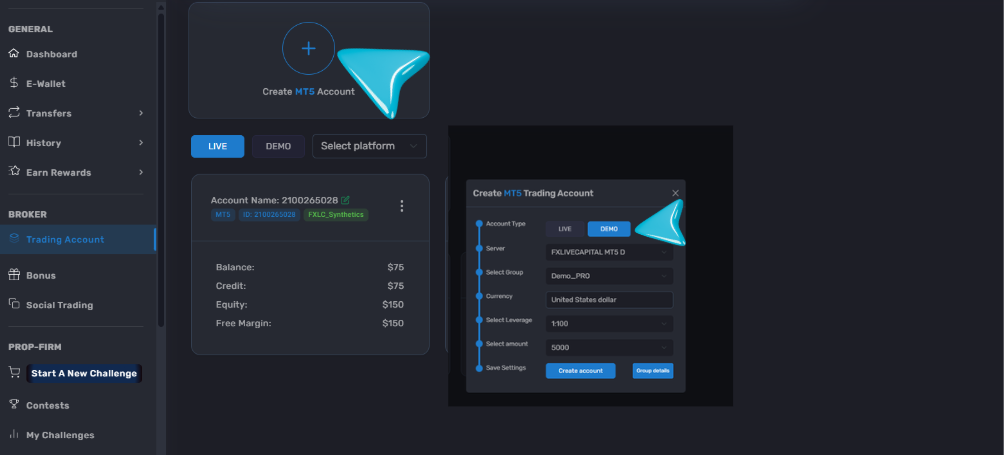
1. Open **Trading Account**.
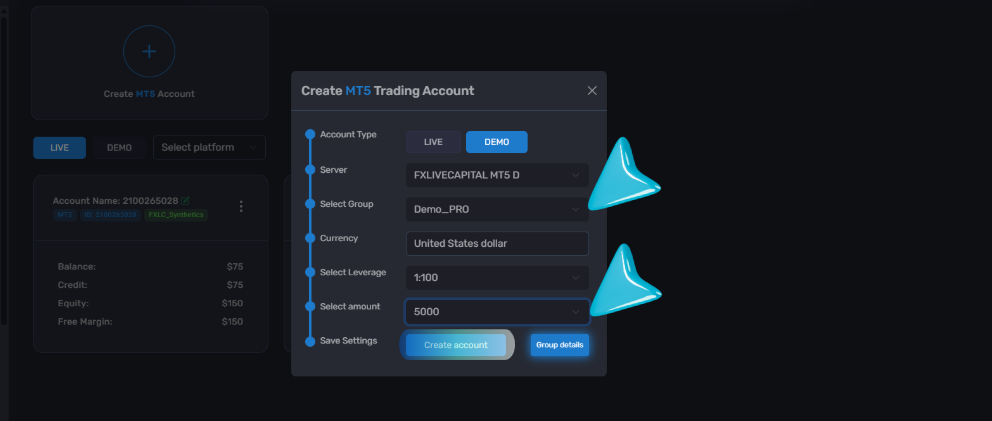
2. Click **Create MT5 Account**, then select **Demo**.
3. Choose the demo account type.
4. Click **Create**.
Your demo credentials will be sent to your registered email.
***
### Access your MT5 credentials
1. In your client area, go to **Trading Account**.
2. Open the account menu and select **See Credentials**.
3. Copy the credentials and use them to log in to MT5.
***
### How to use the Web Terminal
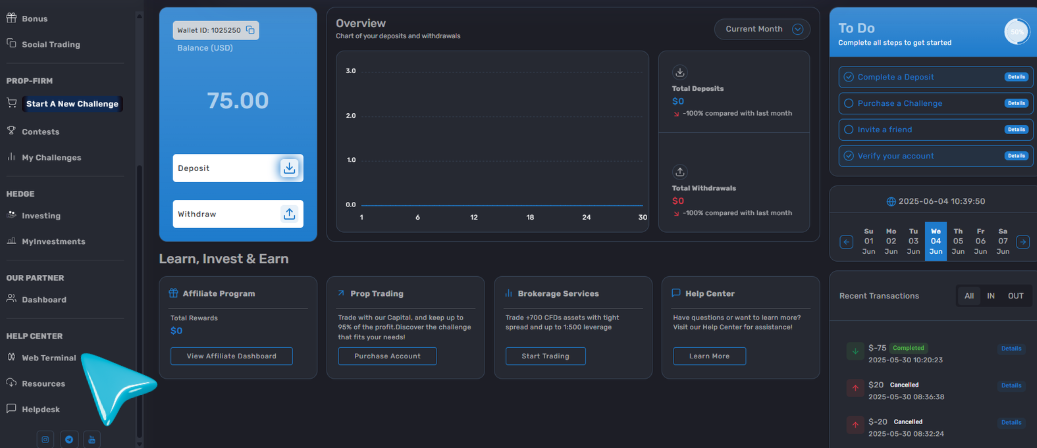
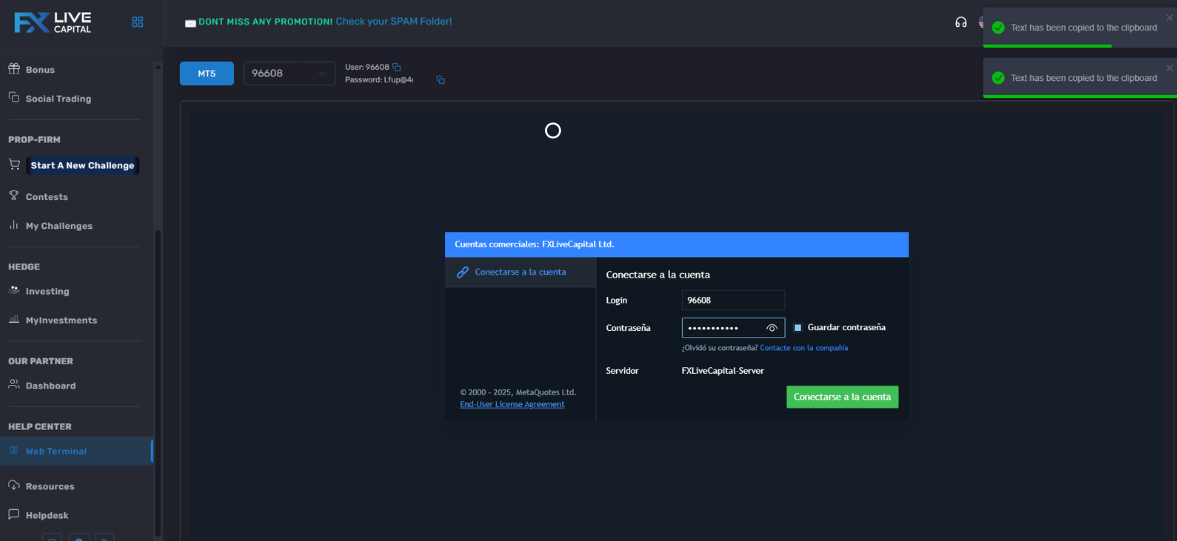
1. In your client area, open **Trading Terminals**.
2. Enter your login and master password in the popup.
To speed this up, you can use the quick copy button in the top-left of your client area.
3. If you have multiple accounts, select the correct one.
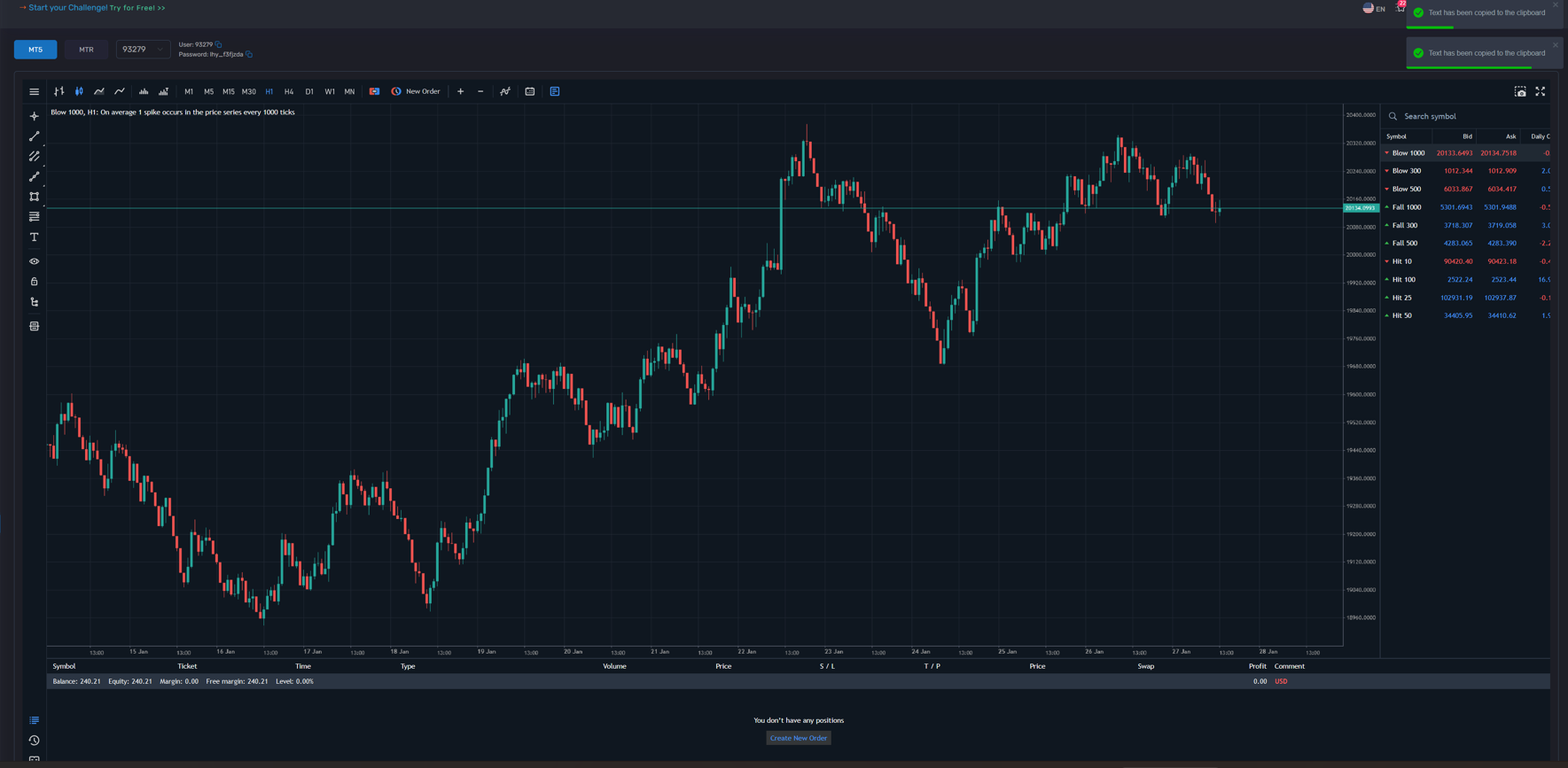
4. Click **Connect** and start trading.
***
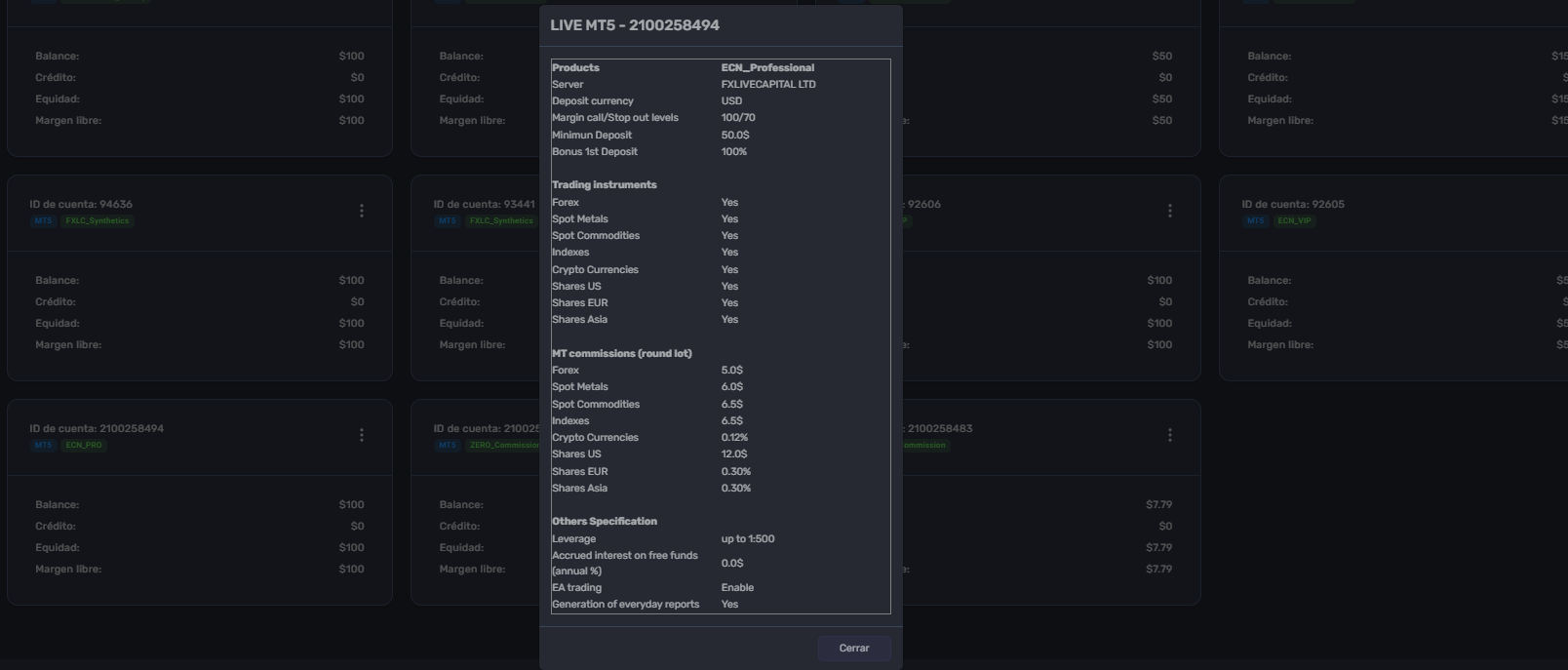
### View account details (leverage, deposit minimums, bonuses, etc.)
1. In **Trading Account**, open the three-dot menu (⋮) next to the account.
2. Select **Account Details**.
***
### Reset your trading account password
If you forgot your platform password, see: [Forgot your FXLiveCapital password?](/iHQNLyDW28A3nNbpumaP/first-steps/welcome-and-quick-start/forgot-your-fxlivecapital-password.md)
If you need to reset a trading account password from within your client area:
1. Open the account menu and click **Reset Password**.
2. Complete the required information and confirm.
{% hint style="info" %}
You may need **2FA** enabled to complete this action. See: [How to secure your account with two-factor authentication?](/iHQNLyDW28A3nNbpumaP/first-steps/welcome-and-quick-start/how-to-activate-2fa.md)
{% endhint %}
***
### Transfer funds between your accounts
There are two ways to transfer funds between your own accounts. Transfers are typically completed immediately.
#### Option 1: From the Transfer menu
1. Open **Transfer**.
2. Choose **Between my accounts**.
3. Select the sending account and the receiving account.
4. Click **Transfer**.
#### Option 2: From Trading Account
1. In **Trading Account**, open the three-dot menu (⋮) next to the account.
2. Select **Transfer Funds** to be redirected to the transfer screen.
***
### Archive a trading account
{% hint style="warning" %}
Before archiving, make sure the account balance is **$0**. Accounts with remaining funds cannot be archived.
{% endhint %}
1. Open **Trading Account**.
2. Open the three-dot menu (⋮) next to the account.
3. Select **Archive** and confirm.
***
### Step-by-step: connect your account to MT5
#### 1) Get your credentials
You will receive your credentials by email. The email includes:
* Account number (login)
* Master password (trading password)
* Server: **FXLIVECAPITAL Ltd**
#### 2) Install MetaTrader 5
Download MT5 from the FXLiveCapital Download Center:
*
#### 3) Select the server
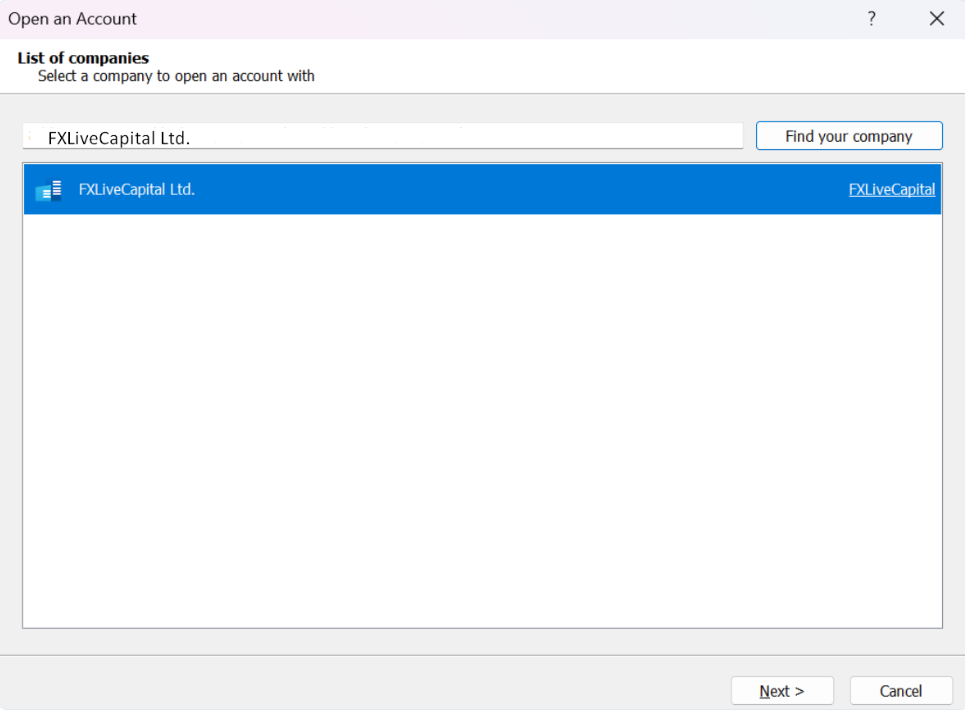
On the MT5 login screen, search for and select **FXLIVECAPITAL Ltd**.
#### 4) Log in
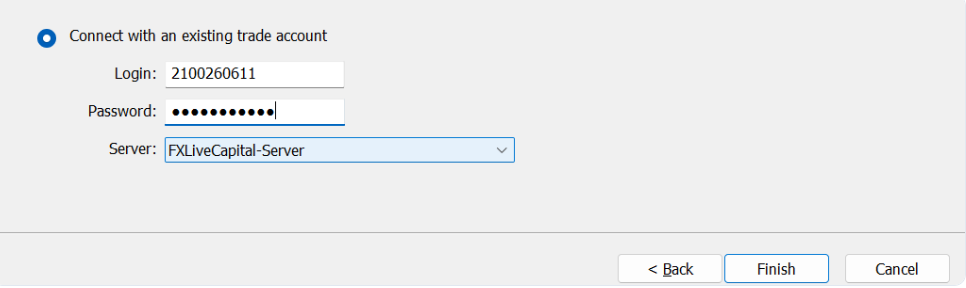
Enter your account number and master password, then connect.
{% hint style="info" %}
Need help?
* Email:
* [Helpdesk: https://client.fxlivecapital.com/helpdesk](https://client.fxlivecapital.com/helpdesk)
{% endhint %}
---
# Agent Instructions
This documentation is published with GitBook. GitBook is the documentation platform designed so that both humans and AI agents can read, navigate, and reason over technical content effectively. Learn more at gitbook.com.
## Querying This Documentation
If you need additional information that is not directly available in this page, you can query the documentation dynamically by asking a question.
Perform an HTTP GET request on the current page URL with the `ask` query parameter, and the optional `goal` query parameter:
```
GET https://faqs.fxlivecapital.com/iHQNLyDW28A3nNbpumaP/services-group/broker-cfds-trading.md?ask=&goal=
```
`ask` is the immediate question: it should be specific, self-contained, and written in natural language.
`goal` is optional and describes the broader end goal you are ultimately trying to accomplish on behalf of the user. GitBook uses it to tailor the answer towards what is most useful for that goal.
The response will contain a direct answer to the question and relevant excerpts and sources from the documentation.
Use this mechanism when the answer is not explicitly present in the current page, you need clarification or additional context, or you want to retrieve related documentation sections.